If you’ve been wondering how to change YouTube layout, you’re not alone. The interface of YouTube keeps evolving, and not every update feels comfortable or intuitive.
Sometimes the homepage feels too crowded, while other times the video player or Shorts section takes over your screen. These changes can affect how you browse, watch, and interact with content.
The good part is that you don’t have to accept everything as it is. With a few simple adjustments, you can take control and create a cleaner, more personalized viewing experience.
How to Change YouTube Layout in Simple Steps
Learning how to change YouTube layout is not about one single option—it’s about making small, consistent changes across different sections. Each step below includes clear sub-points to help you take action easily.

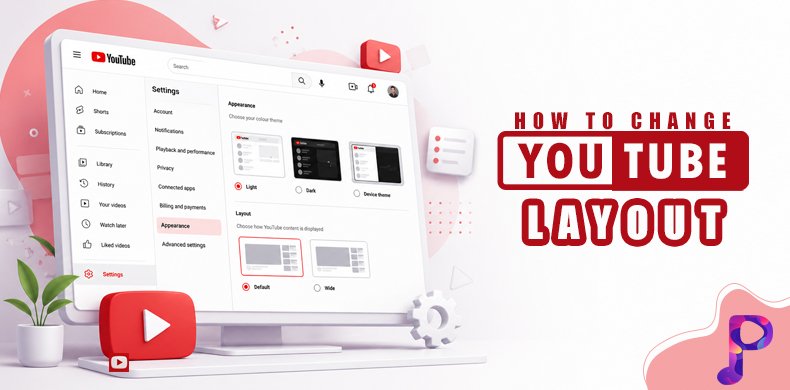
1. Change the Appearance for a Better Visual Experience
Adjusting appearance is one of the quickest ways to understand in changing YouTube layout, as it directly affects how the platform looks and feels.
- Switch between themes: Select Light Mode, Dark Mode, or Device Theme based on your personal preference and the lighting conditions around you.
- Reduce eye strain: Dark mode is ideal for night use, while light mode works better in bright surroundings.
- Access settings easily: Click your profile icon, go to “Appearance,” and select your preferred option.
This simple adjustment instantly refreshes your layout and improves visual comfort.
2. Train Your Homepage for Relevant Content
Your homepage is driven by algorithmic recommendations, so improving it is essential when learning how to change YouTube layout.
- Remove unwanted videos: Use the “Not Interested” option to clean your feed.
- Block irrelevant channels: Select “Don’t Recommend Channel” to avoid similar content.
- Reset recommendations: Clear or pause your watch history to start fresh.
Over time, these actions reshape your homepage into a cleaner and more relevant layout.
3. Simplify the Sidebar for Better Navigation
The sidebar helps you navigate YouTube, and organizing it can make a big difference in how to change YouTube layout.
- Collapse the sidebar: Reduce visual clutter by minimizing it when not needed.
- Focus on key sections: Use Subscriptions and Library to stay organized.
- Avoid distractions: Limit browsing through unnecessary tabs.
A simplified sidebar creates a more structured and focused experience.
4. Adjust the Video Player for a Cleaner Viewing Area
The video player is central to your experience, making it a crucial part of mastering YouTube layout.
- Use theater mode: Stretch the video area to enjoy a more immersive and uninterrupted view.
- Switch to fullscreen: Remove all distractions for immersive watching.
- Enable mini player: Continue watching while browsing other content.
Every mode changes the display style, allowing you to customize how you watch videos.
5. Control the Visibility of YouTube Shorts
Shorts are heavily promoted, but managing them is important when learning how to change YouTube layout.
- Mark Shorts as not relevant: Use “Not Interested” to reduce their appearance.
- Avoid engagement: Don’t watch or interact with Shorts frequently.
- Focus on long videos: This shifts recommendations toward your preferred content.
These steps gradually reduce Shorts clutter on your homepage.
6. Use Extensions for Advanced Customization
Extensions provide deeper control and are useful for advanced users exploring YouTube layout.
- Hide unwanted elements: Remove comments, ads, or recommendations.
- Customize visuals: Adjust thumbnail sizes and layout structure.
- Restore older layouts: Some tools allow you to bring back previous designs.
Using trusted extensions can significantly enhance your customization options.
7. Improve Accessibility and Playback Settings
Optimizing usability is another important aspect of how to change YouTube layout, especially for long-term comfort.
- Adjust subtitles: Change size, color, and background for better readability.
- Control playback speed: Speed up or slow down videos based on your needs.
- Manage autoplay: Turn it off to prevent unwanted videos from playing.
These changes improve how you interact with content, not just how it looks.
8. Switch Between Desktop and Mobile Views
Different devices offer different layouts, so understanding them is key to change YouTube layout.
- Use desktop mode on mobile: Enable it in your browser settings.
- Resize your screen: Adjust window size to change layout density.
- Choose based on preference: Desktop offers more control, while mobile is simpler.
Switching views helps you find the layout that suits you best.
9. Clear Cache to Fix Layout Issues
Sometimes layout problems are technical, and fixing them is part of learning how to change YouTube layout.
- Clear browser cache: Remove stored data that may cause glitches.
- Delete cookies: Reset your session for a fresh layout load.
- Reload the platform: Ensure you’re seeing the latest version.
This simple step can resolve unexpected layout changes quickly.
10. Understand Experimental Layout Changes
YouTube frequently tests new designs, which can affect your experience of changing YouTube layout.
- Recognize test features: Layout differences may be part of experiments.
- Provide feedback: Share your experience when prompted.
- Stay adaptable: The modifications may not stay for long.
Understanding this helps reduce confusion when layouts change suddenly.
11. Organize Subscriptions for a Cleaner Feed
Your subscriptions influence your layout, making them essential in how to change YouTube layout.
- Unsubscribe regularly: Remove channels you no longer watch.
- Follow relevant creators: Keep your feed focused.
- Use subscription tab: Watch content without algorithm interference.
A well-managed subscription list leads to a more organized layout.
12. Use Playlists to Structure Your Content
Playlists give you control over your viewing experience, which is helpful to change YouTube layout.
- Create custom playlists: Organize videos by category or interest.
- Use Watch Later: Save content without cluttering your homepage.
- Reduce dependency on recommendations: Access content directly.
This approach makes your layout more intentional and less chaotic.
13. Adjust Screen Display for Better Viewing
Display settings can influence how your layout appears, making them useful in changing YouTube layout.
- Zoom in or out: Adjust browser zoom for better visibility.
- Change resolution: Fit more or fewer videos on the screen.
- Customize viewing comfort: Adapt layout to your screen size.
These adjustments improve how content is visually presented.
14. Manage Notifications to Reduce Distractions
Notifications can clutter your experience, so managing them is part of changing YouTube layout.
- Turn off unnecessary alerts: Reduce interruptions.
- Customize preferences: Only receive important updates.
- Avoid pop-up distractions: Keep your interface clean.
A quieter interface enhances focus and usability.
15. Keep the Platform Updated for New Features
Updates often bring layout changes, making them relevant to change YouTube layout.
- Install updates regularly: Access new features and improvements.
- Adapt to changes: Learn new layouts as they roll out.
- Delay updates if needed: Temporarily keep a preferred layout.
Staying updated ensures a smoother and more optimized experience.
Conclusion
Understanding how to change YouTube layout is all about making small, practical adjustments across different areas.
By combining these steps, you can create a cleaner, more personalized, and distraction-free experience that truly fits your needs.
FAQs:
1. Can I fully customize my YouTube layout?
Not completely, but you can make significant changes using settings and tools.
2. Why does my YouTube layout keep changing?
Because YouTube frequently runs updates and experiments.
3. How to change YouTube layout quickly?
Start with appearance settings and homepage customization.
4. Can I remove Shorts completely?
No, but you can reduce their visibility.
5. Do extensions help?
Yes, they provide advanced customization options.
6. Is desktop better than mobile?
Yes, it offers more control over layout.
7. Will clearing history affect layout?
Yes, it resets recommendations.
8. How long does it take to see changes?
Some changes are instant, others take a few days.
9. Is dark mode better?
It reduces eye strain in low-light conditions.
10. What is the easiest way to learn how to change YouTube layout?
Start with basic settings and gradually explore advanced options.